
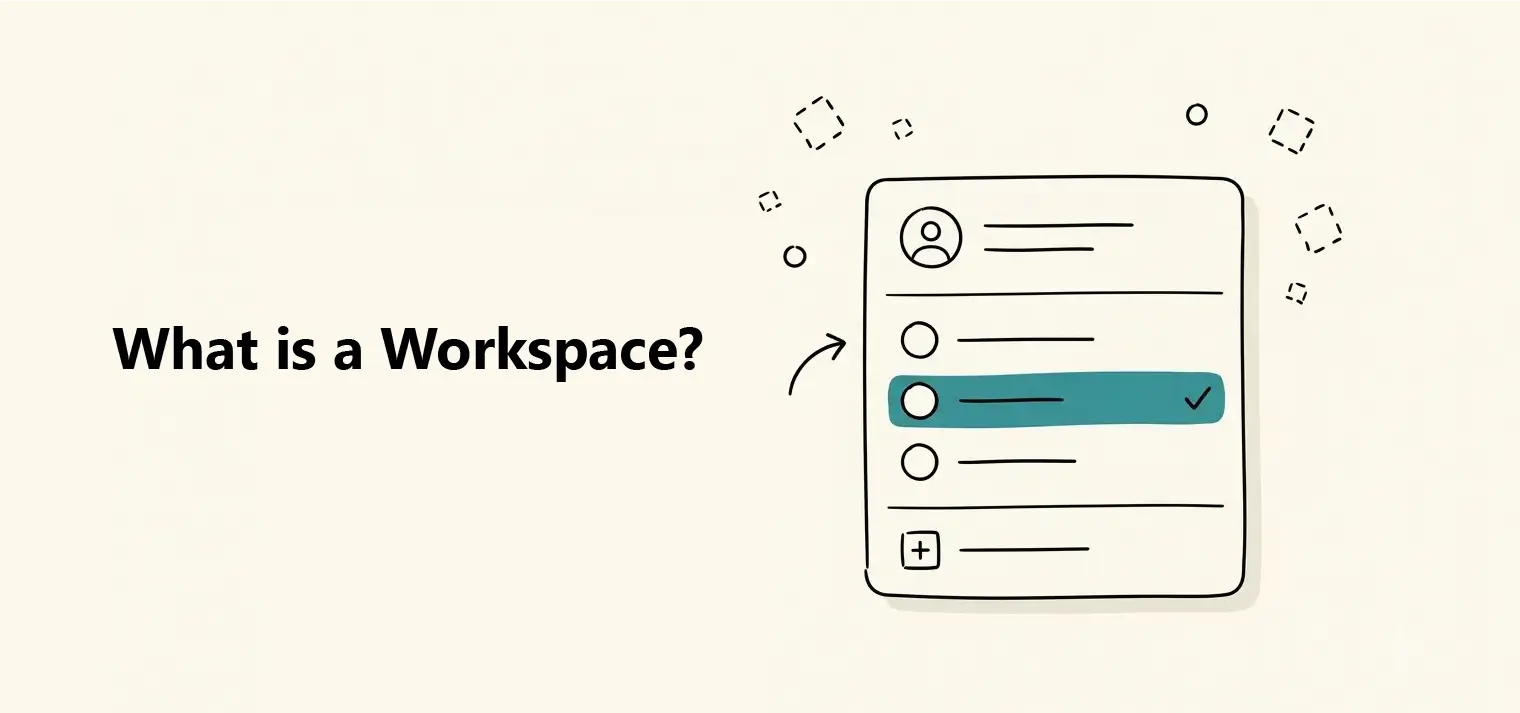
What is a Workspace?
Understand how workspaces organize dashboards, tables, and data sources.

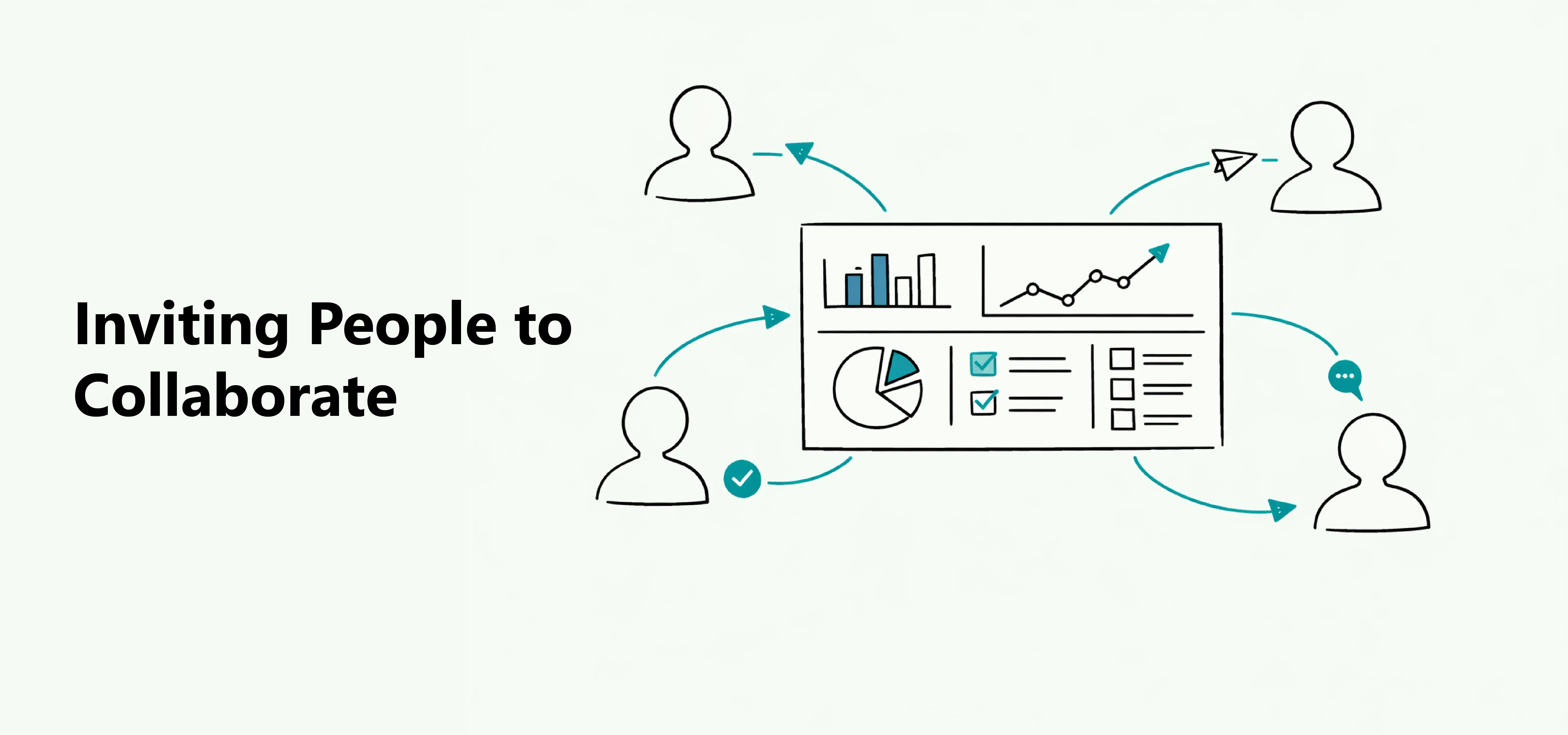
Workspaces allow you to collaborate with other people in the same environment. You can work together to create dashboards, connect data sources, and manage content as a team.
To invite someone, open the workspace where you want to add a new member. You can open a workspace by clicking its name in the left sidebar.
Then click the Invite members button.
In the invitation window, enter the person's email address and choose their role.
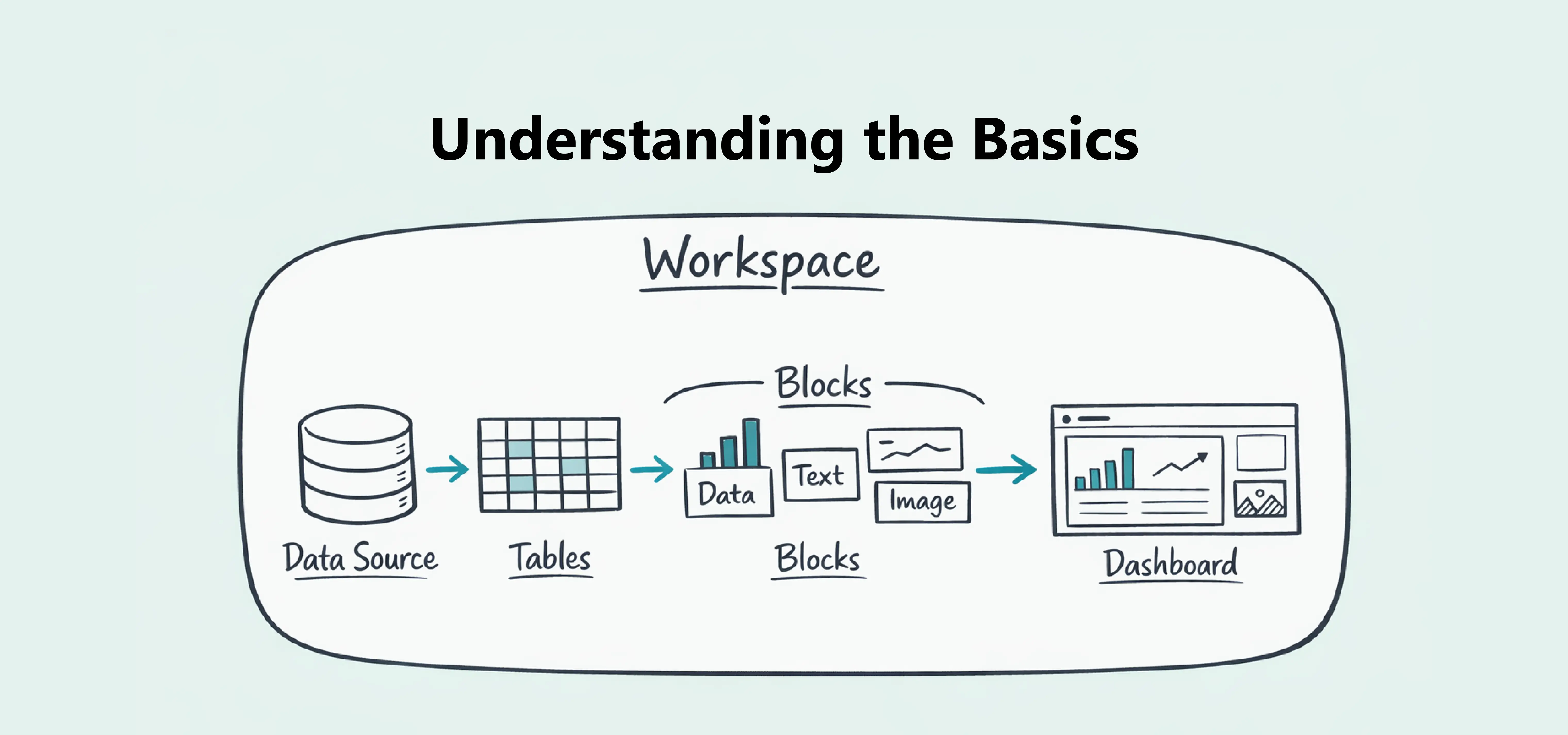
Each workspace member has a role. A role defines what someone can do inside the workspace.
Choose roles carefully to control who can manage the workspace and who can focus on creating and working with data.
Important:Only Owners and Admins can manage invitations. Members do not have access to this section.
You can view and manage all pending, rejected, and expired invitations from the Invitations section.
To access it, open the workspace menu by clicking the workspace button in the top-left corner, then select Settings.
Important:Only Owners and Admins can manage workspace members. Members do not have access to this section.
You can view and manage all active members from the Members section.
To access it, open the workspace menu by clicking the workspace button in the top-left corner, then select Settings.