

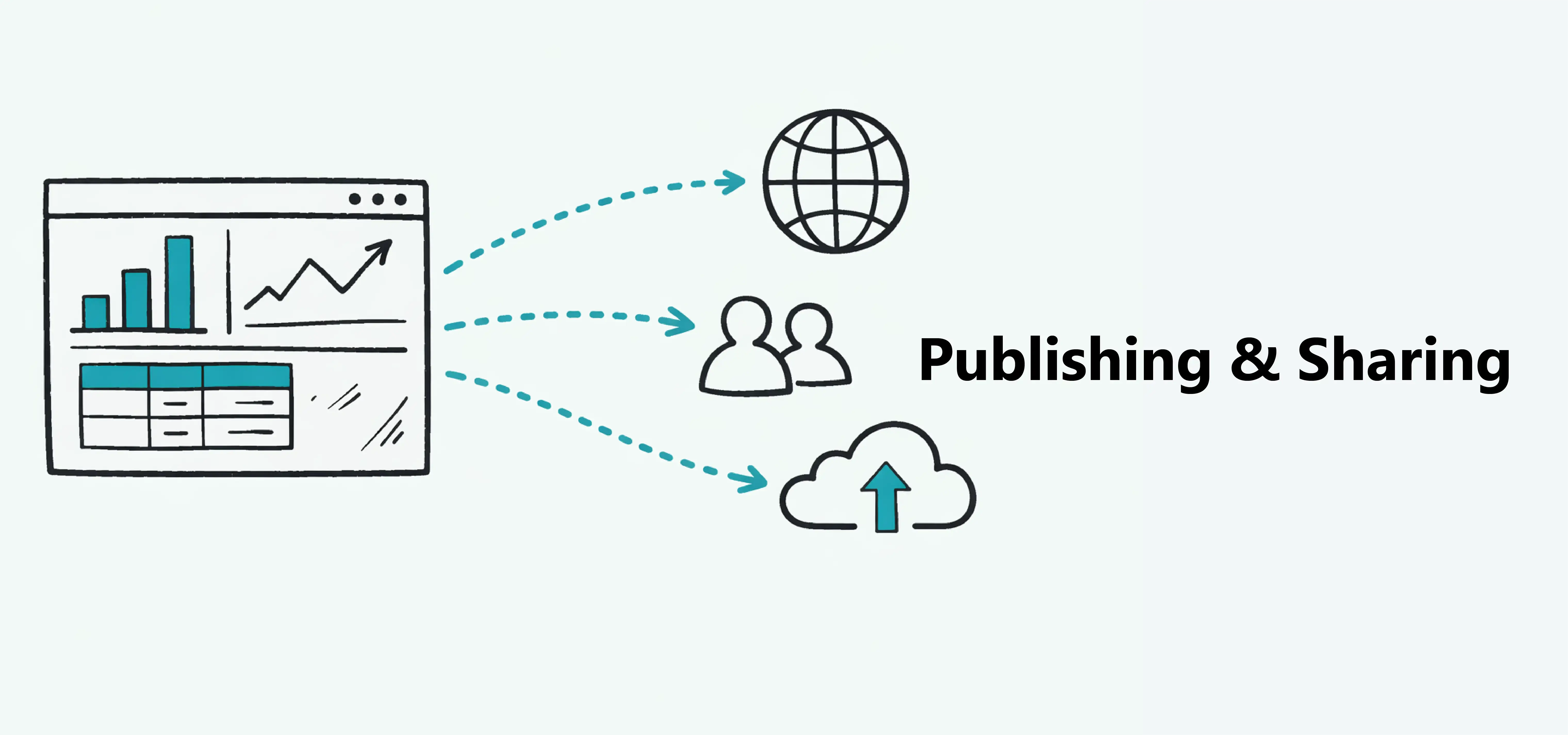
Publishing & Sharing
Share dashboards publicly or privately with others.

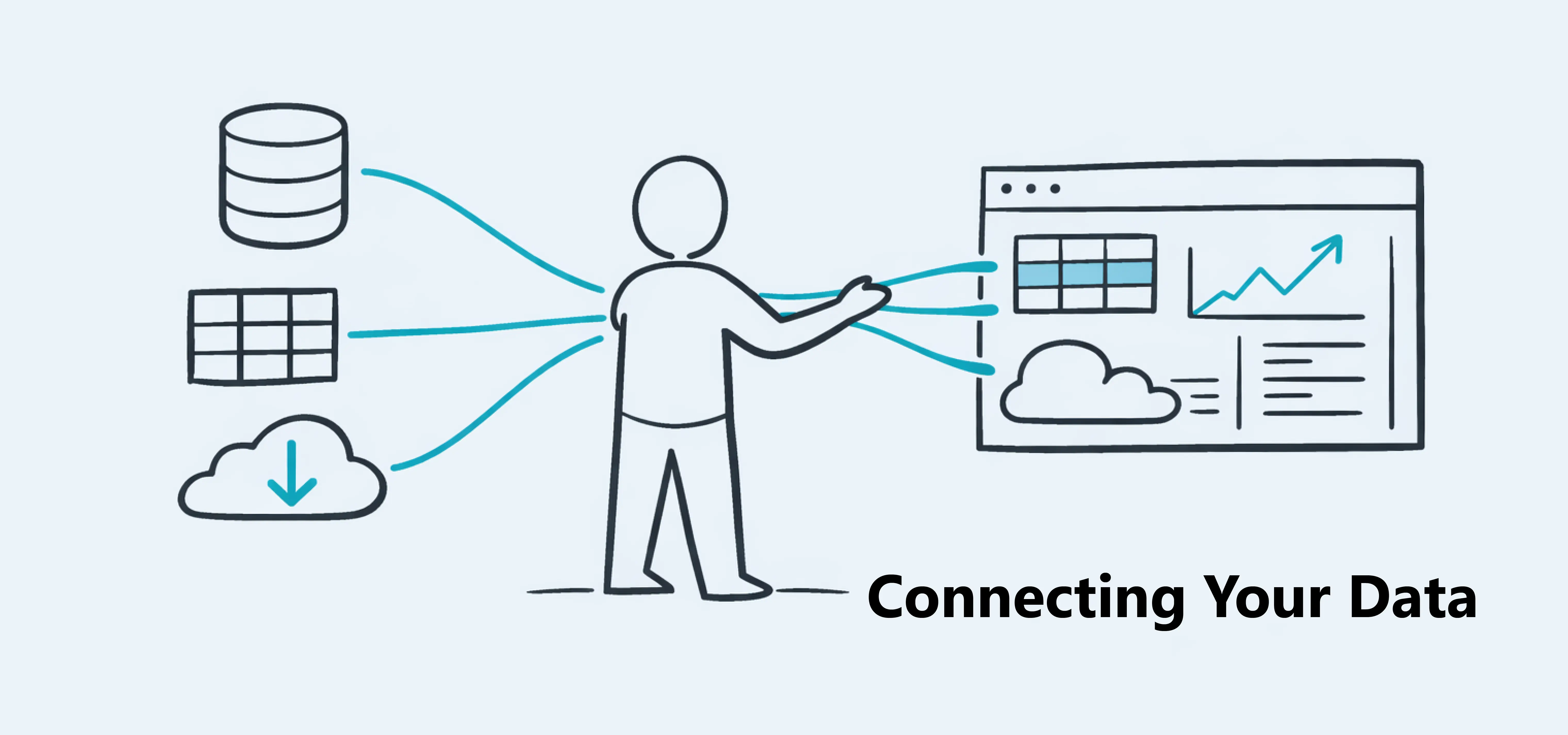
Dashbreeze lets you bring data from external sources so you can use it in dashboards. When your data is imported, it becomes available as tables, which power the data blocks used in your dashboards.
Your original data remains unchanged. Dashbreeze only reads and organizes the data needed to build visualizations.
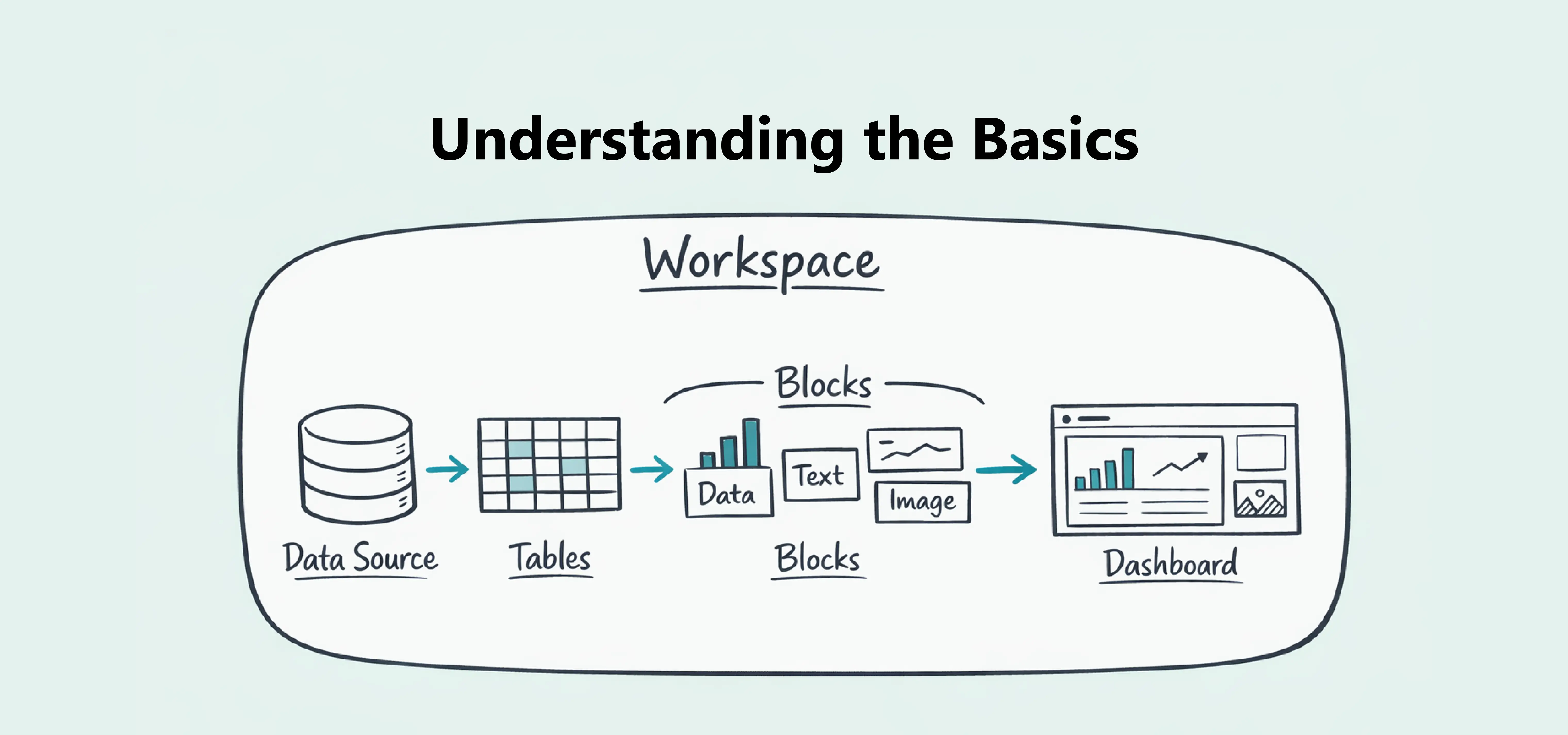
Tables are where your data lives in Dashbreeze. Every data block must connect to a table. You can create a table while setting up your block.
Start by clicking the data block you want to configure. When the settings panel opens on the left, go to the Connect Data section and click Select table, the first setting in the panel.
The table selection screen will open. From there, click Create table. You will then be taken to the page where you can set up your table.
After clicking Create table, the first step is choosing a data source. This is where you select where your data will come from.
Dashbreeze supports several types of data sources, including:
| Source | Type |
|---|---|
| Google Sheets | Integration |
| Google Analytics | Integration |
| Notion | Integration |
| Airtable | Integration |
| XLSX | File |
| XLS | File |
| CSV | File |
| JSON | File |
| Parquet | File |
Tip:After selecting your data source, Dashbreeze guides you through the steps to create your table. Each data source includes a step-by-step tutorial available on the right side of the screen. Open the sidebar and follow the instructions to complete the setup.
Important:When using spreadsheets such as Google Sheets, XLSX, or XLS files, your data must follow a column-based structure. Each column should contain one type of information, and each row should represent a single record. For example, one column can contain dates, another revenue values, and another product names. Each row represents one sale or one entry.
Row-oriented (can't be used)
| Metric | Jan 3 | Jan 4 | Jan 5 |
|---|---|---|---|
| Revenue | $120 | $45 | $80 |
| Orders | 3 | 1 | 2 |
Column-oriented (recommended)
| Date | Revenue | Orders |
|---|---|---|
| Jan 3 | $120 | 3 |
| Jan 4 | $45 | 1 |
| Jan 5 | $80 | 2 |
After importing a table, you can apply transformations to prepare the data for analysis.
Important:Transformations only change how your data is structured inside Dashbreeze. They never modify your original data source. Your files, spreadsheets, and databases remain unchanged.
Transformations help you clean and organize your data before using it in dashboards.
For example, you can:
To apply a transformation, click the column header in your table. A menu will open where you can select the transformation you want to apply.
These tools help ensure your data is organized and ready to power your dashboard blocks.
When you connect a data source such as Google Sheets or a database, Dashbreeze creates an integration. This integration securely connects your workspace to that source.
You only need to connect a source once. After the integration is created, you can create additional tables from the same source without reconnecting it.
To manage your integrations, go to the Home page and click Integrations in the left sidebar. There you can rename an integration, reconnect it if needed, or delete it.