
Inviting People to Collaborate
Invite teammates and collaborate inside a workspace.

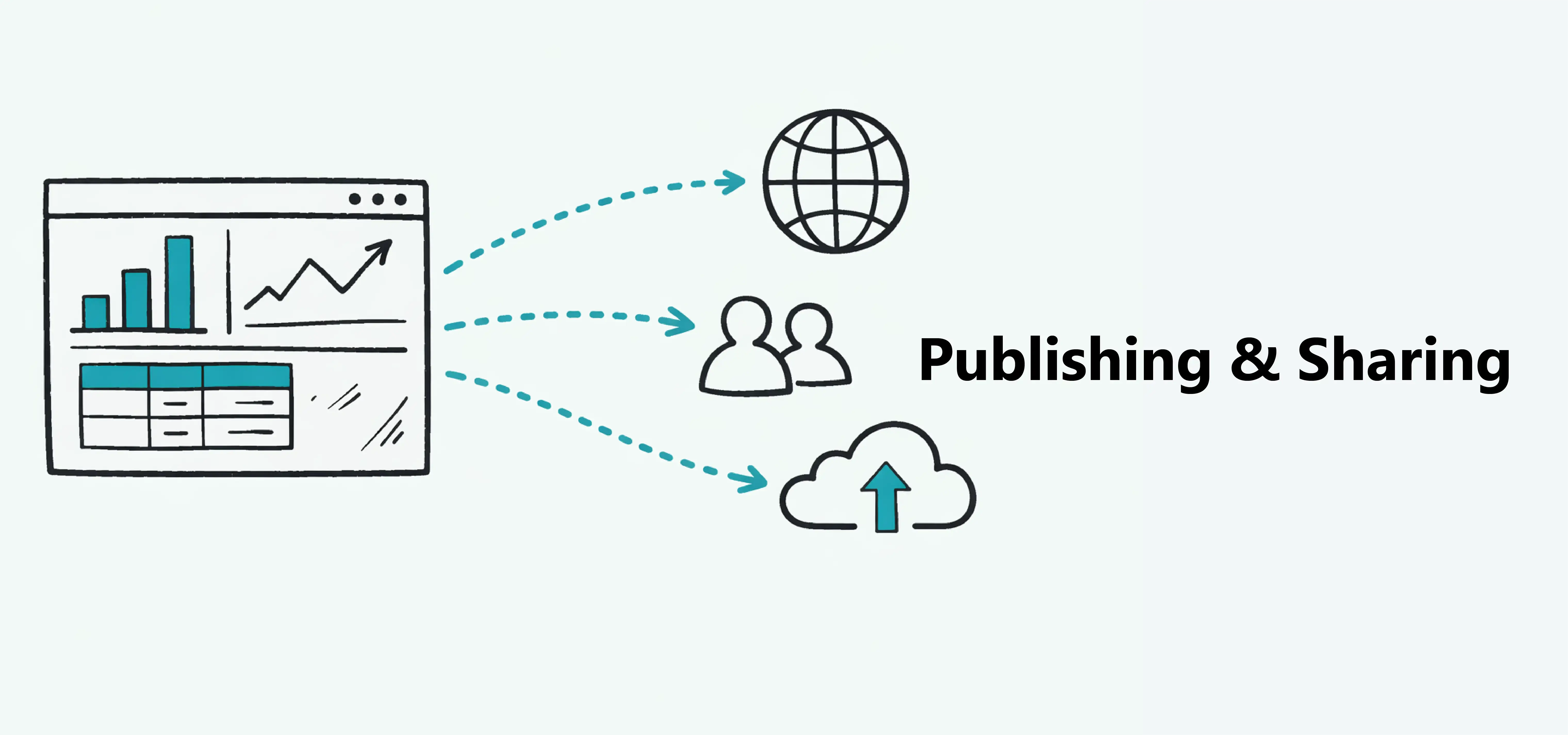
When you create a dashboard, it starts in Draft mode. Draft dashboards can only be viewed by you and the members of your workspace.
To share a dashboard with people outside your workspace, you first need to publish it.
To publish a dashboard, click the Publish button in the left sidebar. This opens the publish panel.
Then click Publish dashboard to make the dashboard available online.
Good to know:If you make changes after publishing a dashboard, its status changes to Unpublished changes. To make those changes visible to everyone viewing the dashboard, publish it again.
Note:If a dashboard is not published, only members of your workspace can view it.
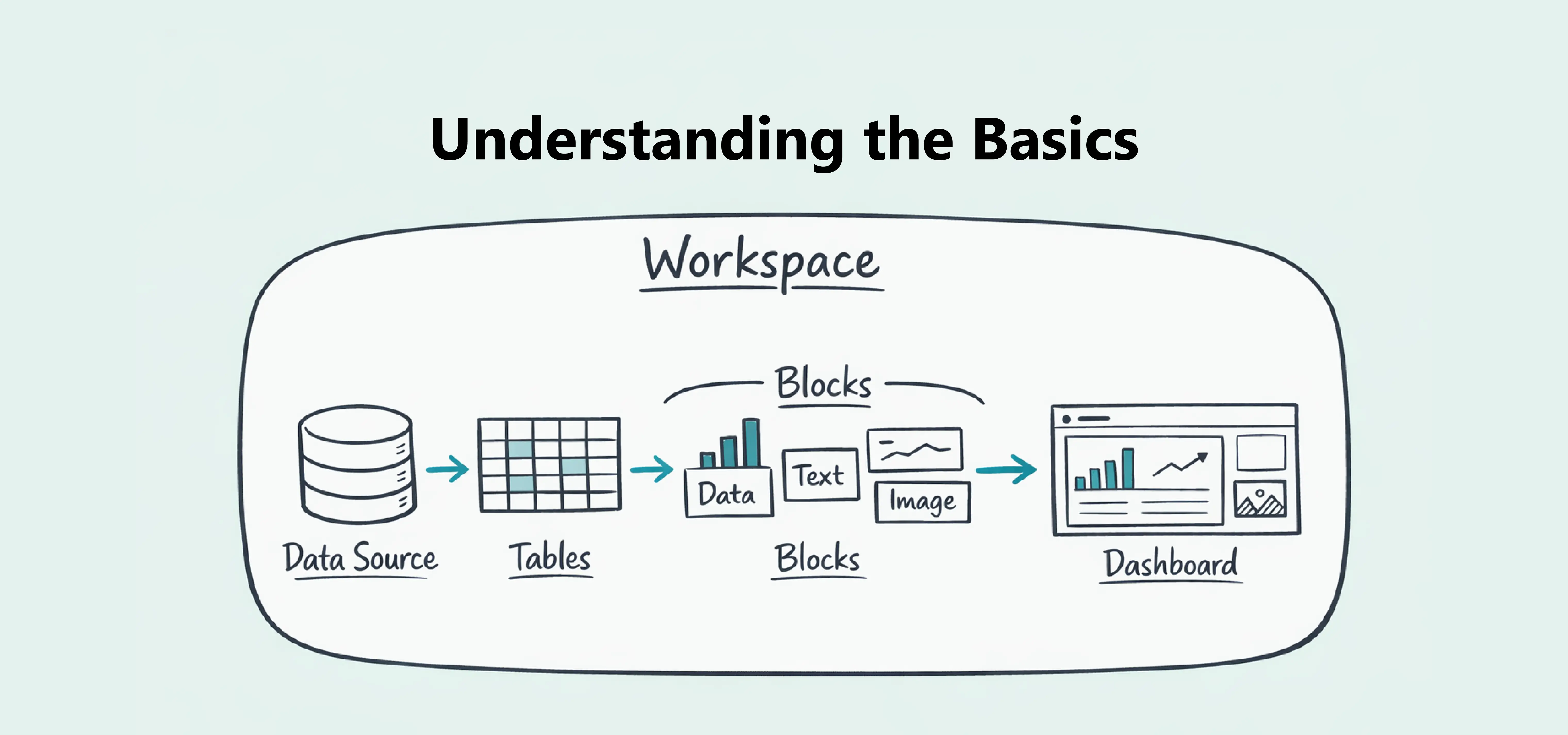
To share your dashboard, click the Share button in the left sidebar.
Dashbreeze provides four ways to share a dashboard:
You can also embed your dashboard into a website or application. The embedded dashboard follows the same sharing option you selected (Public link, Protected link, or Email invitation).
Good to know:People you share the dashboard with can only view it. They cannot edit the dashboard. Only workspace members can make changes.